PipeWire - The Modern Linux Audio Server
Posted on July 8, 2025
With the evolution of Linux a number of different sound systems have been built around the audio architecture of Linux. Each one was created to solve the problems of the one that came before it, and together they tell the story of how Linux audio grew from "fine for a system beep" into a genuine professional platform. PipeWire is the newest of these systems and has very much become the default these days. I am going to walk through each layer of the stack, explain what problem it solves, and then focus on PipeWire and how to get low latency out of it.
In my previous post I covered the operating system side of things: the real-time kernel, CPU governor, memory limits and so on. That is the foundation that everything else stands on. This post is about the layer that actually moves the audio around — the sound servers.
ALSA
The Advanced Linux Sound Architecture (ALSA) provides kernel driven sound card drivers. It replaces the original Open Sound System (OSS).
Besides the sound device drivers, ALSA also bundles a user space driven library for application developers. They can then use those ALSA drivers for high level API development. This enables direct (kernel) interaction with sound devices through ALSA libraries.
This is taken right from the Arch Wiki and explains ALSA very well. All the other systems utilise ALSA and its underlying kernel drivers to talk to the audio cards that are set up in a system. As stated, ALSA also has a userspace library that other user level applications can take advantage of. Digital Audio Workstations such as Ardour, Reaper and Bitwig can talk directly to ALSA.
The real issue with this is that ALSA only supports one application at a time, so it will lock out all other applications from using it. This causes errors with audio engines in DAWs or things like a browser video ceasing to play. It is a bit annoying if you are doing music and want to watch a YouTube video on how to do something.
In other words: ALSA is the road network, but with no traffic lights. Only one car can use the road at any given moment.
PulseAudio
Until PipeWire came along, PulseAudio was the standard audio server for the Linux desktop. It was created back in 2004 and its goal was completely different from ALSA's: rather than low latency, it was designed to make everyday desktop audio painless. It sits on top of ALSA and gives you the things a normal user expects:
- Multiple applications playing sound at the same time
- Per-application volume controls
- Bluetooth and USB audio devices that "just work"
- Moving a stream between devices while it is playing
The trade-off is latency. PulseAudio buffers audio quite heavily and is not designed around real-time scheduling. It is absolutely fine for watching videos, listening to music and taking calls, but it is the wrong tool for recording and monitoring. Running a DAW through PulseAudio means fighting against latency the whole time. Many audio applications were written to support PulseAudio, and that ecosystem is still very much alive today.
JACK
JACK (the JACK Audio Connection Kit) came from the opposite direction. It was built by and for musicians who needed real-time, low-latency audio with a proper connection model. JACK runs on top of ALSA and lets you route audio between applications as if they were patches on a mixing desk — route Reaper's output into Ardour, send a synthesiser into a recording app, split one source to three destinations, all from a patchbay.
JACK is fantastic at what it does. The problem has always been that it effectively takes over the sound card, which brings back the old ALSA problem in a different form: while JACK is running, normal desktop applications have nothing to play through. People spent years fiddling with PulseAudio-to-JACK bridges and session managers to get both worlds at the same time. It worked, but it was never simple.
PipeWire
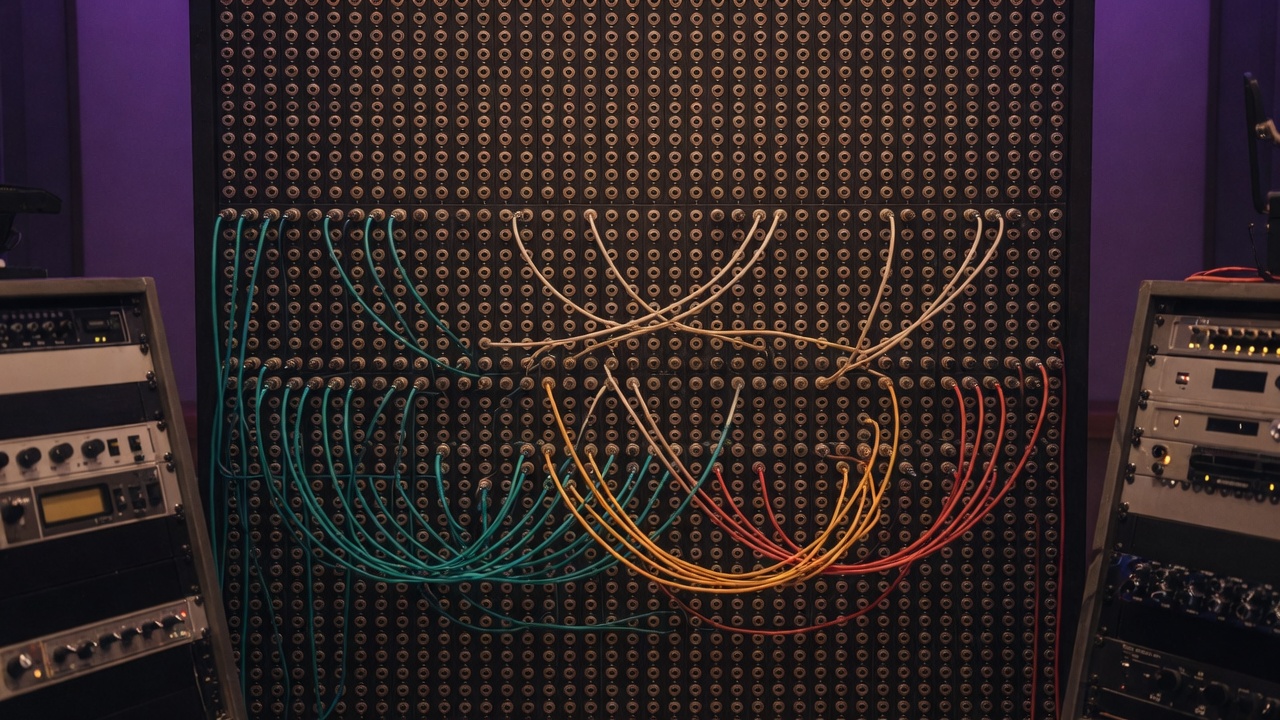
The best of all worlds. PipeWire has rapidly become the standard for most Linux distros these days. It can tie into both PulseAudio, JACK and ALSA. It is also highly configurable for low latency. In short, it gives you the desktop convenience of PulseAudio and the pro-audio low latency of JACK in a single server.
How did we get here?
PipeWire was started by Wim Taymans, the author of GStreamer, in 2015. The original design was revisited and rewritten, and version 0.3 is what shipped as the default across the major distributions — Fedora was first in 2021, and Ubuntu and the others followed shortly after. It is worth knowing this because "0.3" sounds unfinished, but it has been production-ready and the default for years now. It also handles video (think Wayland screen capture), but for our purposes we care about the audio.
One graph to rule them all
At its core PipeWire is graph-based, exactly like JACK. Every application, every device, every bluetooth headset is a node in a graph, and audio flows between those nodes. On top of that graph PipeWire provides compatibility layers, which is the clever part:
pipewire-pulse— speaks PulseAudio protocol, so every existing PulseAudio application works unchangedpipewire-jack— speaks JACK protocol, so every existing JACK application (Ardour, Reaper, Bitwig, Carla, etc.) works unchangedpipewire-alsa— speaks ALSA protocol, so ALSA-only applications also work
This is why PipeWire "just works" for so many people: nothing has to be rewritten. Old PulseAudio apps, pro JACK apps, and everything in between all land on the same graph, routing to the same devices, at the same time.
Latency is all about the quantum
PipeWire processes audio in blocks called quantums, which are the same idea as a buffer size. A quantum is measured in samples, and your round-trip latency is a direct result of it:
latency = quantum / sample_rate
So a quantum of 256 samples at 48000 Hz gives you about 5.3 ms per buffer, a quantum of 128 about 2.7 ms, and so on. The default PipeWire quantum is 1024, which is deliberately on the safe side for general desktop use. For recording and monitoring we want to bring that down to 128 or 64 — low enough to feel immediate, but not so low that the CPU cannot keep up and you get clicks and pops (XRUNs).
Configuring PipeWire for low latency
PipeWire's configuration lives in /etc/pipewire/ and, for your own overrides, in ~/.config/pipewire/. The clean way to customise it is to copy the stock files into your home directory and edit those copies:
mkdir -p ~/.config/pipewire
cp /usr/share/pipewire/pipewire.conf ~/.config/pipewire/
cp /usr/share/pipewire/jack.conf ~/.config/pipewire/
cp /usr/share/pipewire/pipewire-pulse.conf ~/.config/pipewire/
The jack.conf file is where the latency settings for JACK clients (which is what most DAWs count as) live. Set your sample rate and buffer size here:
jack.properties = {
    node.latency       = 128/48000
    node.rate          = 1/48000
    # node.force-quantum = 128
}
A word on those two: node.rate controls the sample rate of the graph, and node.latency tells clients what latency to ask for. The value is written as samples/rate, so 128/48000 means 128 samples at 48 kHz.
For PulseAudio clients, the same kinds of settings live in pipewire-pulse.conf, but you will rarely need to touch them for pro work.
Per-application rules
The genuinely useful feature is being able to treat different applications differently. Watching a YouTube tutorial while Reaper is recording should not force Reaper to use the desktop-friendly default. The jack.rules section matches on a process name and applies overrides just to that process:
jack.rules = [
    {
        matches = [
            { application.process.binary = "reaper" }
        ]
        actions = {
            update-props = {
                node.force-quantum = 128
            }
        }
    }
]
You can add an entry for every DAW you use. A good starting set for a pro-audio workstation:
jack.rules = [
    {
        matches = [ { application.process.binary = "reaper" } ]
        actions = { update-props = { node.force-quantum = 128 } }
    }
    {
        matches = [ { application.process.binary = "ardour-8" } ]
        actions = { update-props = { node.force-quantum = 128 } }
    }
    {
        matches = [ { application.process.binary = "bitwig-studio" } ]
        actions = { update-props = { node.force-quantum = 128 } }
    }
]
If you start to hear XRUNs at 128, step back up to 256 and see if it clears. Latency numbers are meaningless if the audio is full of clicks.
Real-time scheduling and rtkit
For PipeWire to hit those low numbers consistently, it needs real-time scheduler priority. The nice thing about PipeWire is that most distributions configure it through rtkit for you, which manages real-time permissions automatically. If you followed my previous post and set up the limits.conf entries for the audio group, you are already covered. With PipeWire, make sure your user is in the audio group and rtkit will generally handle the rest.
You can verify PipeWire actually has real-time priority:
ps -eo pid,cls,rtprio,comm | grep pipewire
The cls column should show FF (FIFO) or RR (round-robin) with a non-zero rtprio for the main pipewire process.
Session management
PipeWire separates the server from the session manager, which is the part that decides what connects to what — the policy layer. The current session manager is WirePlumber, and its control tool is wpctl. It is worth knowing these commands:
wpctl status          # Show the current graph and devices
wpctl set-default <id>  # Change the default output device
If you ever find PipeWire acting oddly after plugging in an interface, restarting the user services is usually enough:
systemctl --user restart pipewire pipewire-pulse wireplumber
Monitoring what is going on
When you are chasing latency problems, pw-top gives you a live view of every node in the graph, its quantum and its latency, much like top for audio:
pw-top
And pw-cli lets you inspect metadata and objects directly:
pw-cli info 0
If you want to verify the whole stack is healthy, run a DAW at your target quantum and watch pw-top — any node repeatedly blowing past its quantum period is your culprit.
A practical, minimal setup
Putting it all together, here is the recipe I would recommend for a recording machine:
- Run the low-latency/RT kernel and OS tweaks from the previous post.
- Confirm your user is in the
audiogroup and rtkit is granting real-time priority. - Copy the stock PipeWire configs into
~/.config/pipewire/. - Set
node.rate = 1/48000and a low quantum injack.conf. - Add
node.force-quantumrules for your DAW(s) to keep the rest of the system on a relaxed desktop quantum. - Reboot (or restart the PipeWire services) and verify with
pw-top.
The result is the thing that used to take years of fiddling with JACK and PulseAudio bridges: a system where you can record at a few milliseconds of latency and still have your browser, media player and DAW all coexisting on the same sound card. That is why PipeWire has become the default — and why I would not go back.